Cube Design - Introduction to Cube Cobra

Note: This article was translated from Chinese by AI and may contain errors. Read the original Chinese version.
This is a follow-up article on Cube. Readers who enjoy the draft experience are invited to start with What Is a CUBE - Your First Cube.
What Is CubeCobra
Cube Cobra is a platform for managing and maintaining Cubes (hereafter also called Cobra), where designers can maintain and share their own Cubes. In the past, to make a Cube, a designer had to spread a large number of cards on a table to find inspiration; in the digital age, spreadsheet software can assist the design; and now you can also use all kinds of deck builder sites to build a Cube.
The Cube Cobra introduced this time has powerful features that make designing and managing a Cube more intuitive and efficient. Once you’ve used it, there’s no going back.
Earlier ways of making a Cube may have been rougher. See the experience of former U.S. National Champion Kyle Rose; interested readers can search YouTube for “This History of Cube Drafts…as told by me on my stream!” to find his video (watch out for strong language!!!), where he made his Cube using nothing but bento boxes.
Also, since this is the Magic Cube column, this article will try to add as much Magic and Cube related knowledge as possible, while also helping readers get a basic understanding of Cobra’s features as quickly as possible.
Motivation for Using Tools
In Cube design, the designer wants to achieve the following goals through tools:
- Every card is useful, so players are willing to pick it.
- Every card fits at least one deck type.
- Every two-color theme is supported.
- The Cube has a suitable mana curve.
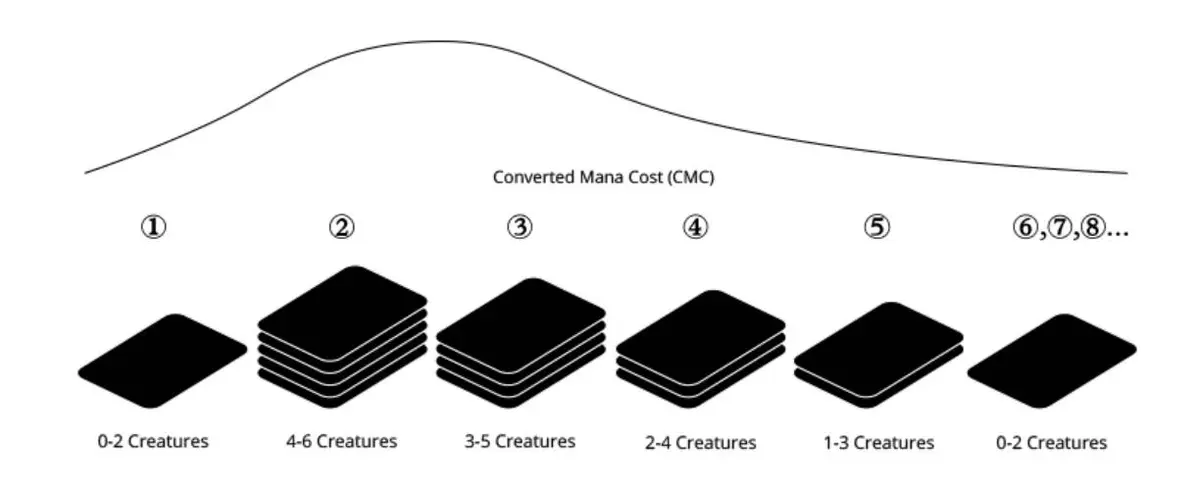
Here is a brief note on a few deck archetypes: aggro, midrange, control, and combo. The decks commonly seen in drafts are midrange or aggro. In a Cube, if the designer wants to offer combo or control, they need to add enough cards in the corresponding mana curve for players to draft.
For example, enough low-cost cards and combat tricks can support aggro, and likewise enough disruption spells, removal and finishers let a control plan take shape, and the same goes for combo.
Next I will introduce how Cobra’s features meet the designer’s needs.
Making Your First Cube
There are two ways to create a Cube: build it manually, or Clone (copy an existing Cube)
Method 1: Take an FDN singleton Cube (Foundation Set singleton Cube) as an example
The manual creation section is thanks to cephille
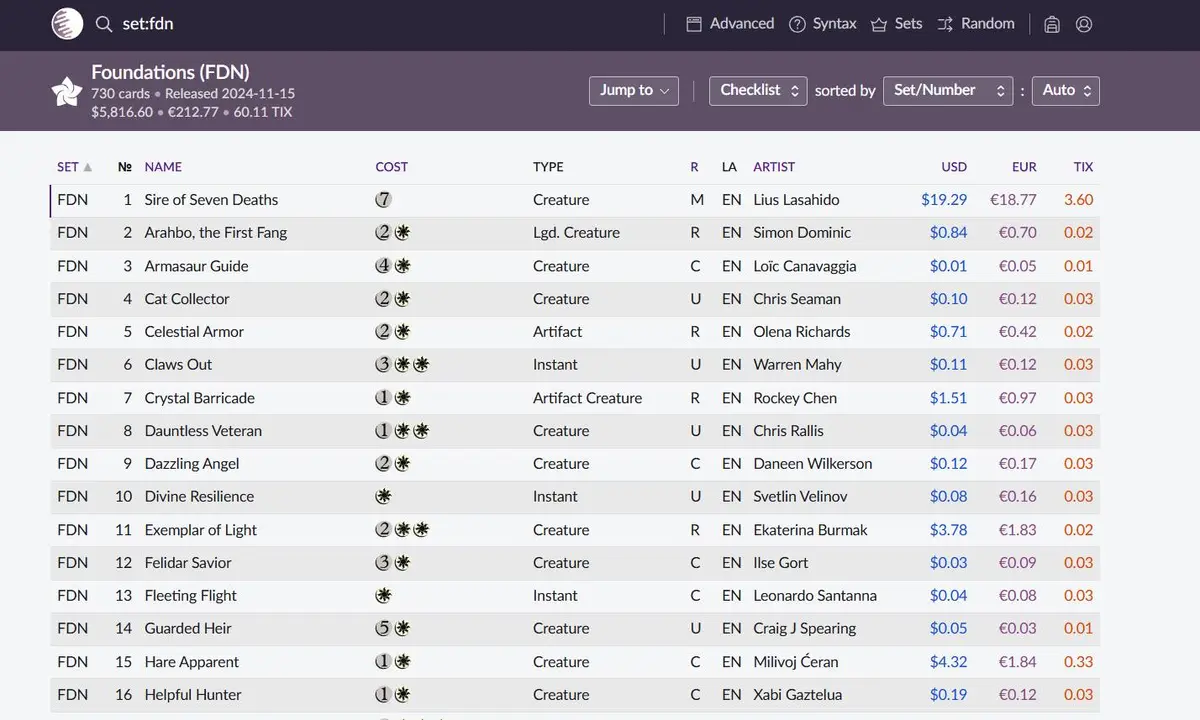
- Search Scryfall for the corresponding set; for this demonstration, choose “set:dft”.
- Change the image preview (Image) to the plain-text preview (Checklist), and copy all the cards you need.
Scryfall’s checklist view can’t export directly, so just copy the whole rows of the cards you need from the blank area; there may be an easier way, and everyone is welcome to share after trying!
- Paste into an editing interface such as Microsoft Excel or Google Sheets, then copy only the card name (Name) column.
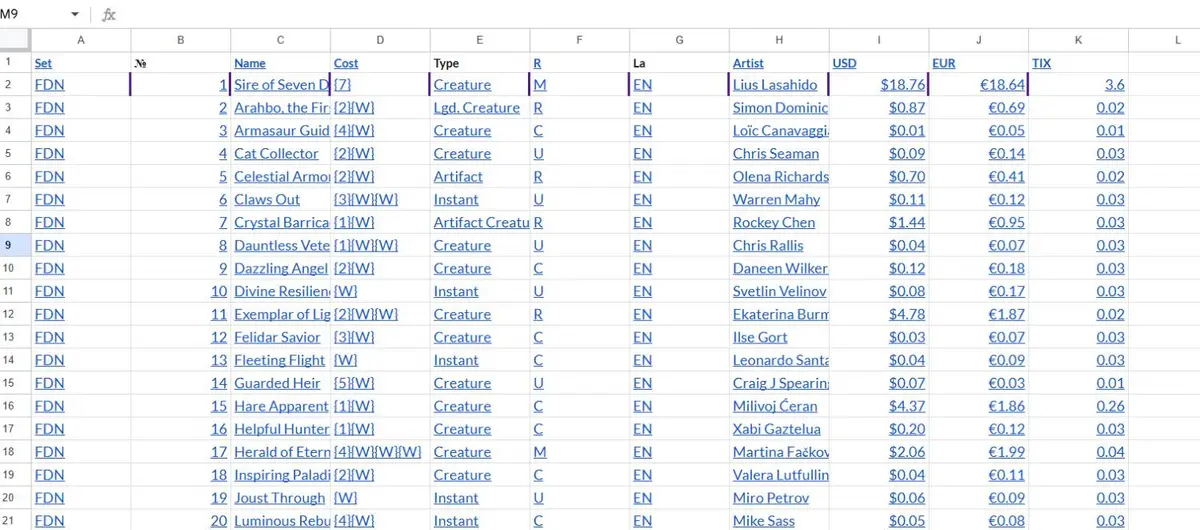
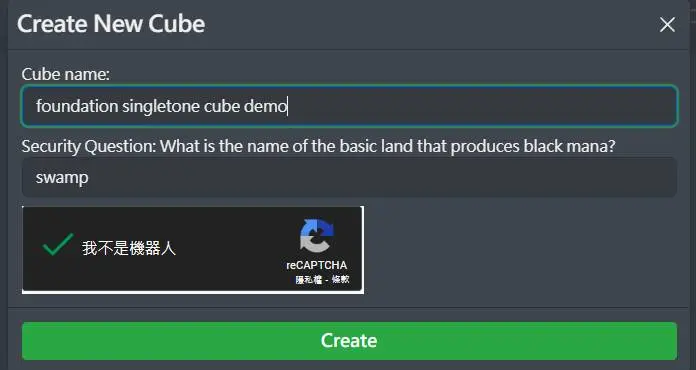
Create A New Cube on Cube Cobra; this step requires registering a Cube Cobra account and logging in first. Interestingly, creating a new Cube also requires answering a simple Magic trivia question, and you can’t create it if you answer wrong XD

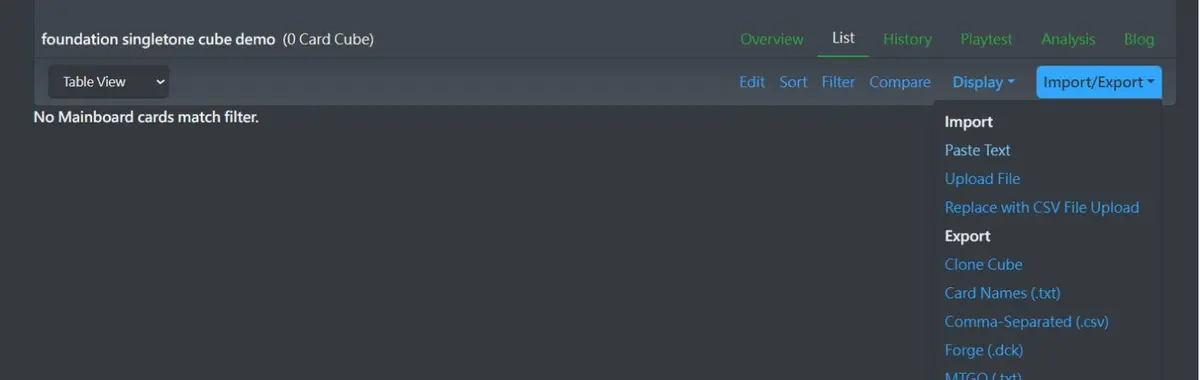
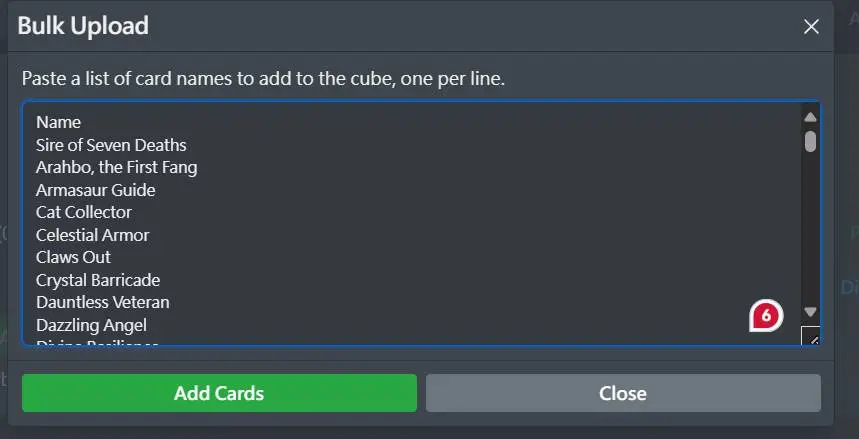
Go into the newly created Cube, List > Import/Export > Paste Text, then go back to step 4, copy all the card names over and paste them, then click “Add Cards”,
and the Krabby Patty is doneand our singleton Cube is built.
If you want to add the single cards you can open from SPG or the extra sets of older sets (such as WOE’s Enchanting Tales (WOT), STX’s Mystical Archive (STA), etc.), follow the same method above and add them to that Cube in turn.

Method 2: Copy someone else’s
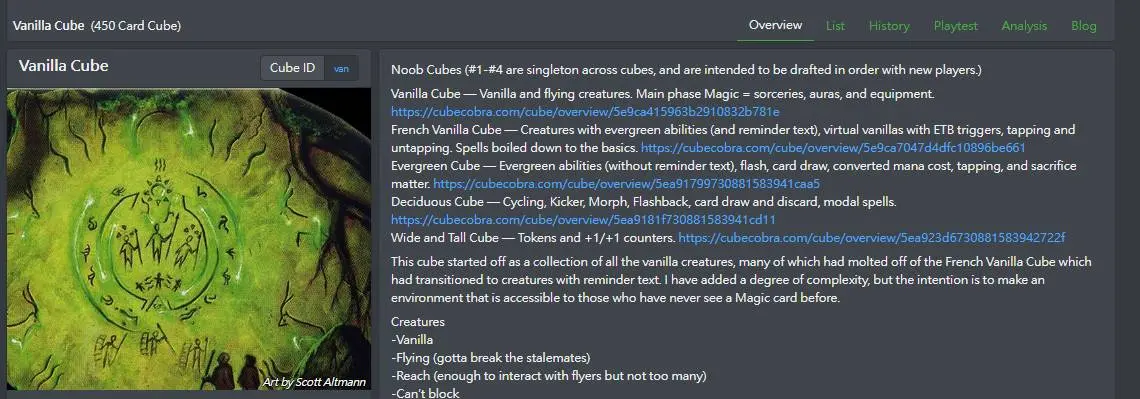
Pick a Cube you like; here we take Vanilla Cube as an example:
- Go to the Vanilla Cube page
- Click List at the top right
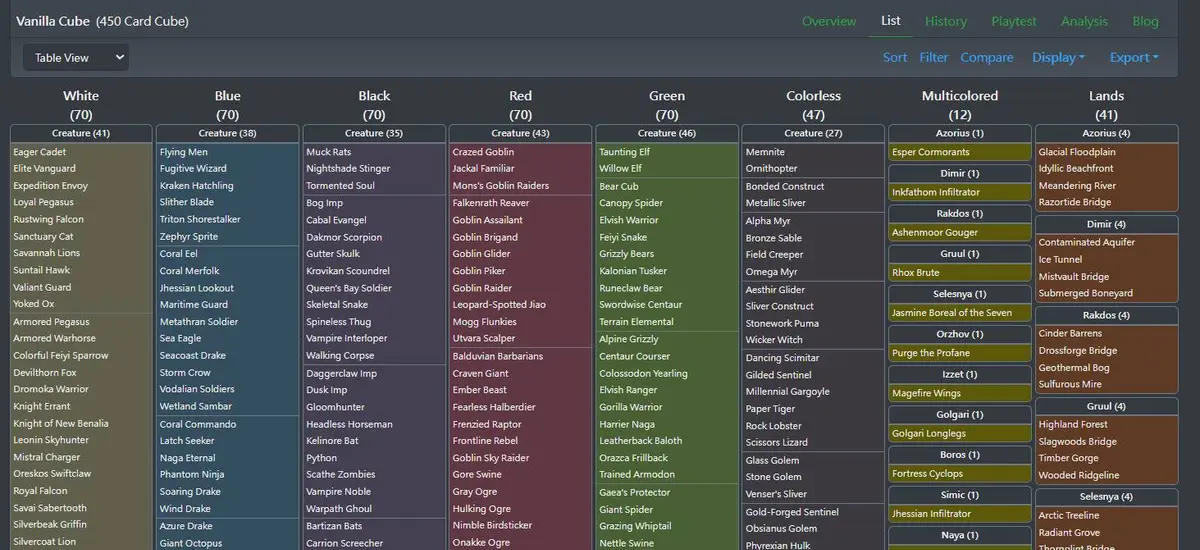
- Click Export, then choose Clone

You will then get a copy of Vanilla Cube, and in your copy you can modify freely without affecting the original Cube.
List
The List page is what you will touch most often in design. It is the page you will stare at the longest during the design process and also where you exchange with others. The List features are introduced below.
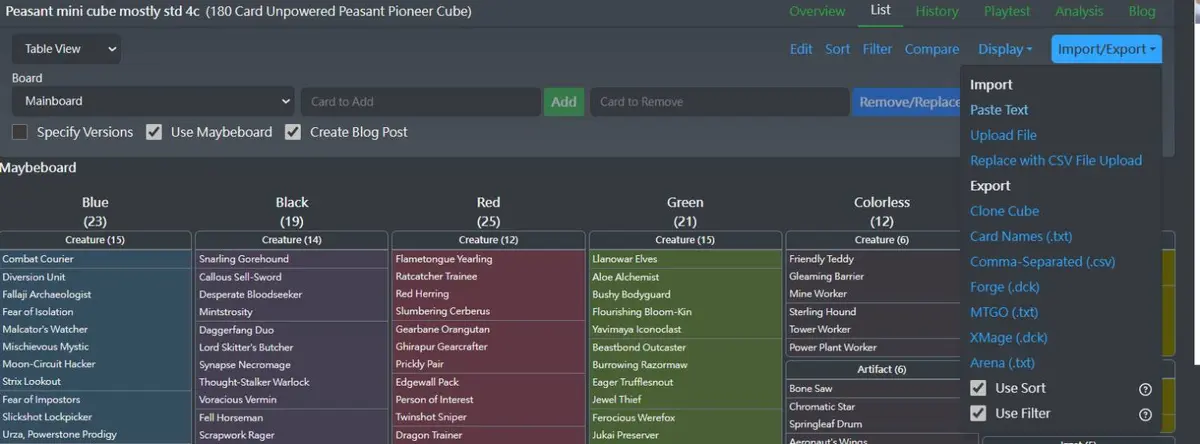
List - Add card
There are three ways to add cards,
- Type directly into the text box.
- Click Paste in Import/Export and enter a large batch.
- In the Maybeboard, click a card and then click “Move To Mainboard”.

List - Remove
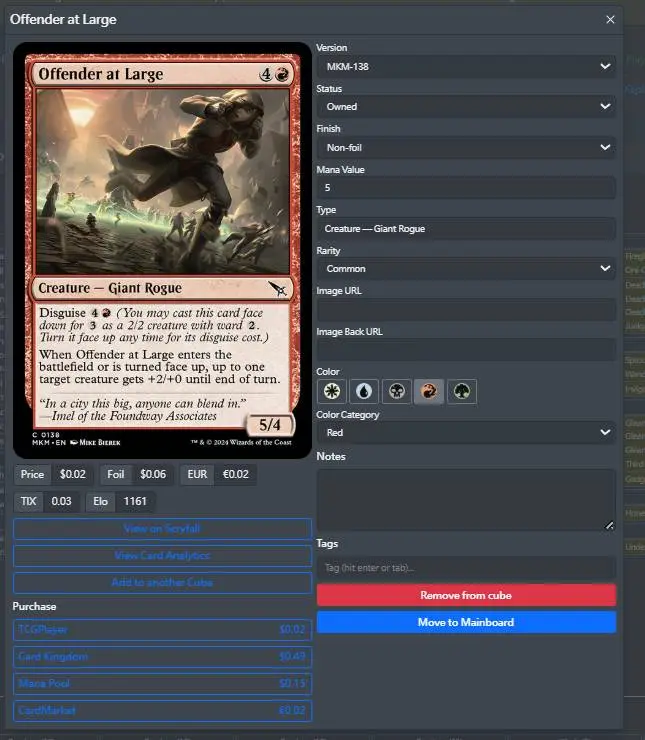
Type the card name into the “Card to Remove” input box to remove it, or open the card’s info page and choose “Remove from cube”
List ChangeList
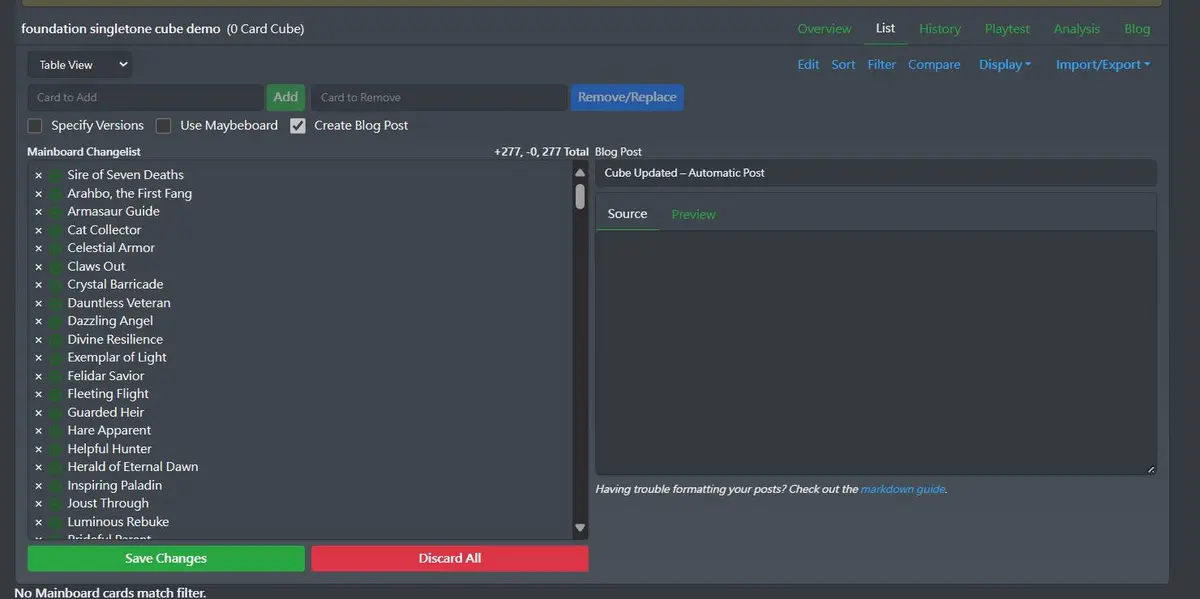
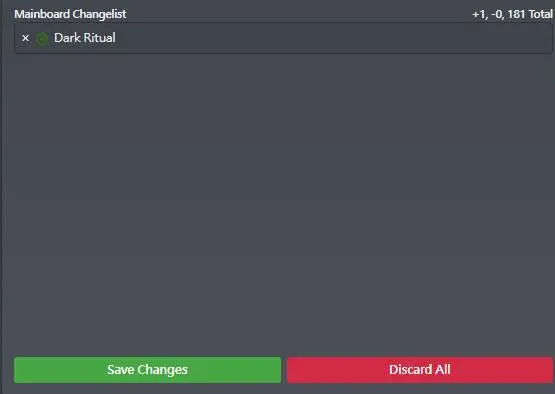
Note that when you make changes to the List, they are not saved immediately; Cobra uses a ChangeList to show you what this batch of changes has modified.
After making changes you can press “Save Changes” to save, or “Discard All” to discard; you can also click the “X” to the left of a card name to undo that change.
List - Maybeboard
A useful feature. Choosing cards while modifying a Cube is a hassle, and the Maybeboard gives you a candidate area where you can put backup cards, so you can park the cards you are considering adding or removing here first.
List - Modify
Clicking a single card in the List opens an info window where you can modify the card’s information. A lot of information can be modified, including color, ownership status, and card art version.
Color: The color on a card can be modified, so that certain cards get sorted into the color you expect when categorizing. For example, the Adventure card Imodane's Recruiter // Train Troops
 , is by default treated as Boros, but the designer can also mark it as only red.
Status: The card’s status, which here is its ownership status. I use it to track whether I have a card, as a reference for placing purchase orders. Here are the statuses:
- Not Owned: Don’t have it
- Owned: Already have it
- Ordered: Already ordered
- Proxied: Proxy
- Bororwed: Borrowed
Afterward you can also use Sort to track a card’s purchase status or whether it has been sorted into the Cube yet.
tag: A feature that is easy to overlook at first but is surprisingly powerful, introduced in the passage below.
List - Modify - Tag
The designer can put custom tags here. Tags are a very powerful tool; the designer can use tags to describe a card’s characteristics, and then, through tags, see the composition and distribution of the Cube more clearly. There is no mandatory rule about what tags to write; it depends on the Cube design, and there is no hard rule about how precise they must be, as long as it is convenient for you to tag the characteristics you are interested in.
For example
How could the common Merfolk Looter be tagged?
- If you have a merfolk theme, you can also add “merfolk”
- If your draw-two theme cares about drawing cards, you can add “draw”
- If you have a madness theme and so want to discard, you can add “discrd”
- If you find those two tags troublesome, you can also just add “loot”
For those who still don’t know what to do, is there somewhere to copy tags from?
The answer is yes. Remember Scryfall mentioned earlier?
Scryfall provides a community-supported site, Scryfall Tagger, used to tag the characteristics of each card.
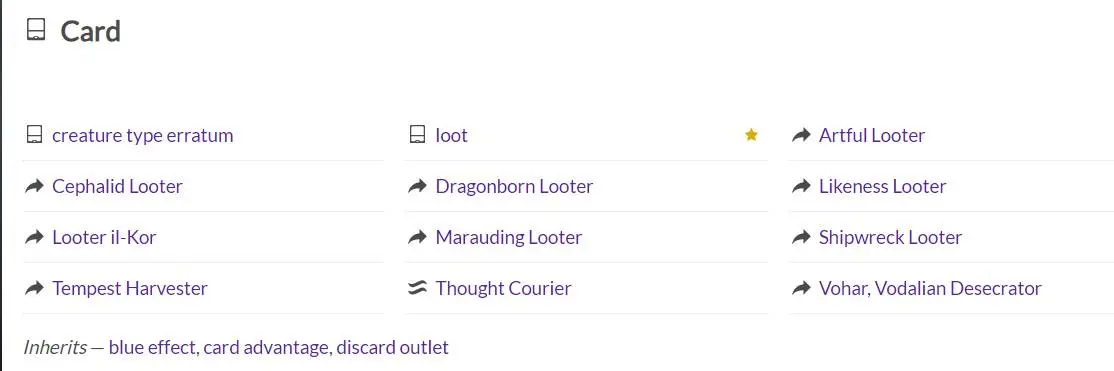
The tagger lists the characteristics of Merfolk Looter, and on the tagger its characteristic is directly marked as loot. Next to the characteristic you can also see cards with similar functions, some similar cards and some upgraded ones.
When you have no ideas for finding cards, take a look at the tagger; sometimes you also get different gains.
In addition, the tagger also tags art styles, recommended for players who like certain art, for example Zettai Ryoiki
Sort
For sorting, CubeCobra can use four card characteristics to sort, and you can sort in whatever way you are interested in. A few commonly used ones are introduced below.
Color / Color Category
This is the default sorting; multicolor is also grouped by guild colors, then divided into small groups by mana, and within groups sorted alphabetically.

This is what I use when organizing a Cube. When it is time to produce the playtest version of the Cube, you need to convert the card list on Cobra into a paper Cube, and at that point I separate the paper cards by color, then sort them by mana value, and compare them against the List on Cobra, so that missing or misplaced cards don’t disturb your wonderful testing time.


How are you supposed to not mix up two cards that look so alike!!
Further reading: Kai Budde mixing up morph cards and losing at the Pro Tour, an anecdote
Color / Tag
If you prepared tags beforehand, here you receive the design benefits tags bring, as mentioned in the first article: “If you can’t find your two-color theme in the Cube, then it is not your theme.” With tags you can check the distribution of a theme across colors and confirm the theme is really supported, and I will introduce better tools for analyzing tags later.
Color / ELO
This lets you observe the ELO distribution of each color. ELO is a score left by predecessors after testing; although cards have different power in different environments, having a baseline reference is always more convenient, and I look forward to the day when, on seeing a low-ELO card, we can say with confidence:
“This card is fine, learn to play”
Color / Power
Used to evaluate the speed of the environment. It depends on whether you prefer a game of small creatures trading blows and the board gradually changing, or a game where the situation suddenly shifts and a huge army arrives to bring pressure.
Color / Toughness
It can be used to evaluate the role of removal. If every creature in the entire Cube has only 1 or 2 toughness, then Shock and Murder
 are actually equivalent, and when designing removal it is worth considering this point to think about the removal’s range.
ELO
ELO is a mathematical system used for ranking; in Cobra it refers to the strength of a card in drafts. If you are interested in how Cobra handles ELO, you can refer to the article below.
ELO can output a reference score based on players’ pick order, but it only has reference value when the two cards being compared are in the same draft pool; for example, when cards of a new set come out, they get far fewer chances to be put in a Cube and draft-tested than old cards, so their ELO scores are also less convincing.
After knowing Cobra’s ELO limitations, what if you want to know a card’s strength within a set? You can refer to 17lands.
17lands is a site that lets players turn their draft and match records into data, then analyze and visualize them, and from here you can find how each card performs in its set.
Filter
A feature that lets you filter the cards in the List; for the syntax see here
Since discovering that filters can be used to apply tags, I have deeply felt that Cobra is truly powerful.
For example, if I want to check whether my Cube has enough delirium cards, I can enter the following command in the filter to find them
o:delirium (finds cards whose text box has delirium)
Besides clicking a single card, the card information editing mentioned earlier in Cobra can also be done by clicking the Label above. Taking Green in the image above as an example, if I want to tag all these creatures with delirium, I first run the command.
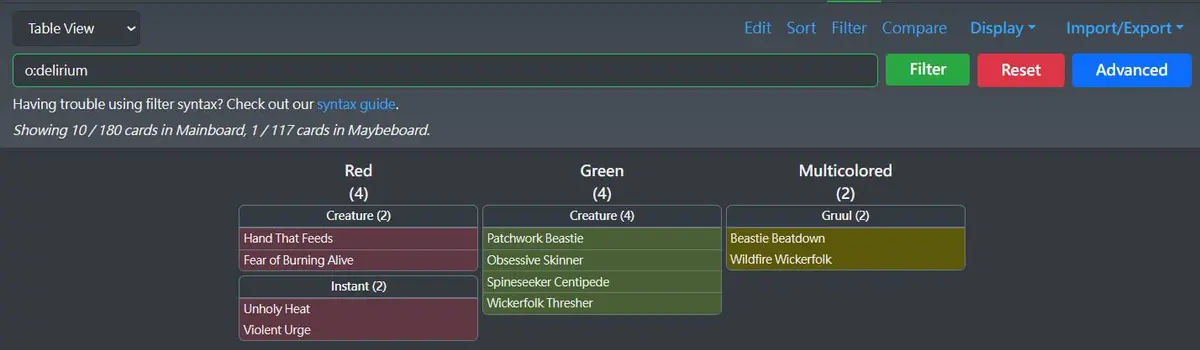
Then open the Label, which is the Creature in the image
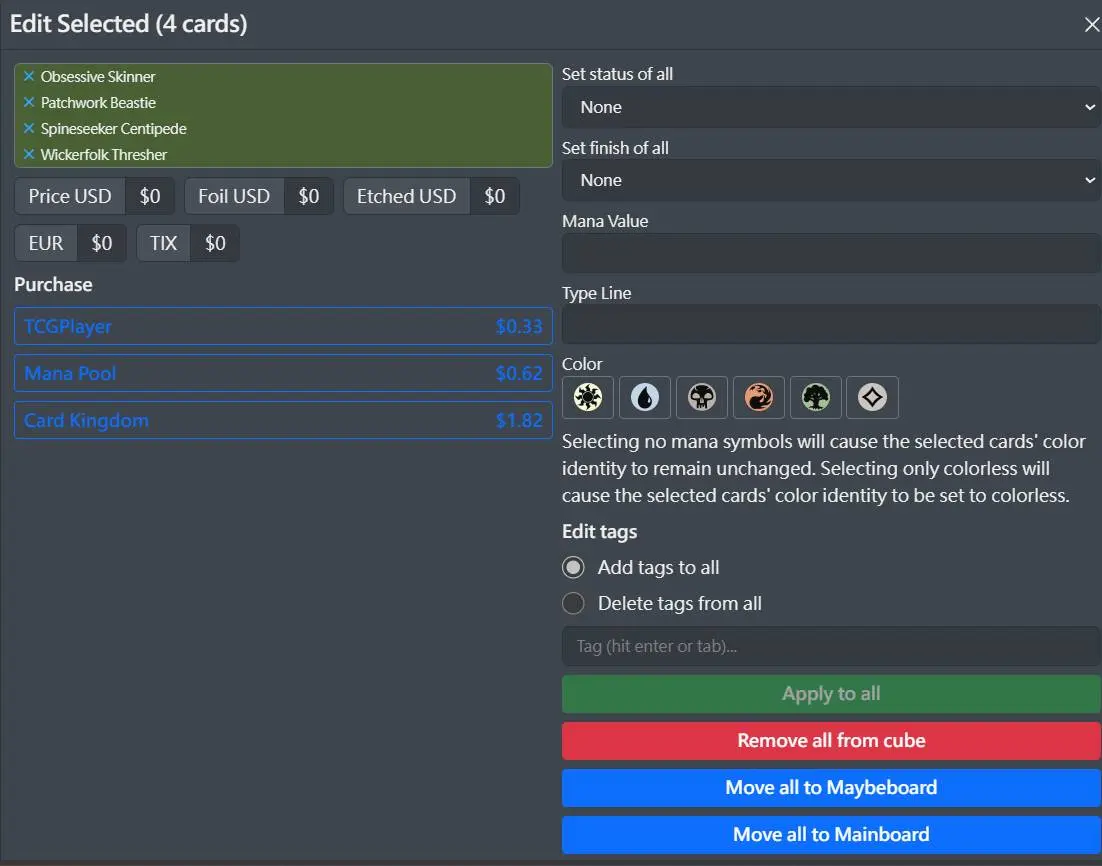
Enter delirium in the tag field and press Apply to all, and these cards will be tagged with the delirium tag!
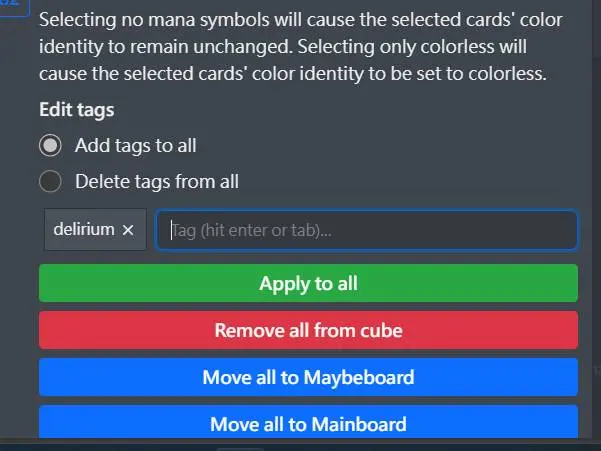
After that you can search for cards using the delirium tag!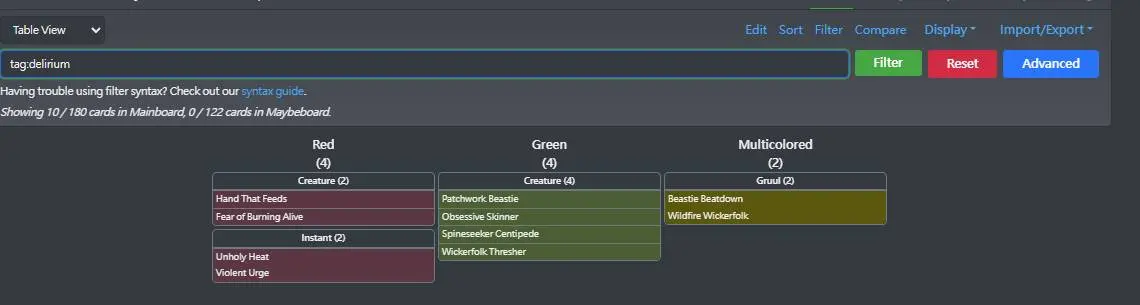
The reason for using tags instead of o: is that when you have a spell of a composite type, you can treat it as a card that can support delirium and tag it, but o: can’t do that.
After tagging the themes of each color, you can then check for cards that slipped through the tags. Filter can also provide a way to query this.
tags=0 (finds cards with zero tags, that is, untagged cards)
This way nothing will be missed. At this point, also note that if you have filtered through all the themes and tagged them, the cards that still have no tags deserve attention; these cards may be unrelated to your themes, and you can consider swapping them out.

Of course, this is also a shortcut for finding Grizzly Bears; bear-lovers’ gang, learn it!!
In addition, there is a similar item that can also be checked:
tags=1 (finds cards with exactly 1 tag)
After tagging, cards with tags=1 may also deserve attention. These cards may support only a single theme, becoming a custom-built weapon for a theme, which usually happens when a theme is too weak and so single cards are added to boost it. But with too many custom weapons there is no fun in fighting over picks, which makes the draft experience worse in design.
Filter makes it easier for the designer to polish and check the small details of the Cube.
History
The Cube’s modification history. Cobra can’t go back to old versions or do diff (comparison) / branch like version control, which is a real pity. I hope for features such as finalizing a version during modification, or merging branches.
The above is a software engineer’s murmur, but actually Cobra’s owner is himself an AWS engineer aaaaah!!!
Playtest
The place to test a Cube, with the ability to draft against AI or against other players, and the drafting feeds back into the ELO system. Designers can draft by themselves to see what each theme looks like when assembled. To test online with friends, DraftMancer is currently supported.
Analysis
Cobra’s most powerful part, providing chart and table analysis so you can understand your Cube better from statistical data.
First is asfan, most important for supporting themes; Maro’s article mentions that asfan is a metric checked when designing Magic set drafts.
Analysis - Asfan
asfan is the expected number of XX you will open in a pack. The default here is 15 cards per pack. For example, if every pack has one nonbasic land, the asfan of nonbasic lands is 1. Here you can see the asfan of tags, which is also an important indicator of whether a theme is really in your Cube.
If a theme has delirium, you need to see enough delirium tags in the asfan.
There is no standard answer for the asfan value. For a Cube with 10 themes, counting with a 15-card pack, each theme has an expected value of about 15 / 10 = 1.5, and you can use this as a baseline to adjust.
Analysis - Token
A thoughtful feature that can list the tokens needed in your Cube and the names of the cards that make tokens.
Analysis - Recommender
A powerful feature. For the story behind it, see the author’s interview Better Design with Cube Cobra. Simply put, Cobra uses AI to find the core of your Cube and, based on the core, finds cards that suit you, so when you are short of cards or want to swap cards, you can come to the Recommender and look around; there is a good chance it is the card you want.
In the ordering of core cards, the further back a card is, the less suitable it may be for you, and you can also consider those cards when cutting,
But AI can’t fully grasp Magic, so if you are confident, you can also ignore this Recommender.
CubeCora Feature Overview: Content
Cobra also has community features, where you can dig up quite a few treasures.
Browse / Article / Podcast / Video
CubeCora Feature Overview: Cube Search
The search function is not very intuitive; please use Lucky Paper’s Cube MAP.
Lucky Paper is Cube Cobra’s index site, which provides a fuzzy-matching way to find Cubes.
In the Cube Map, each dot is a Cube, and the closer two dots are, the more similar they are. The absolute position on the map has little meaning, so when your Cube is indexed on it you can also look at what your neighbors look like; using the map to see how everyone’s Cubes are distributed is quite interesting.
Note: This index is updated only once every few months, so if you can’t see your Cube, it means your Cube is still too green young.
For classmates who like analyzing data, I put the raw data here for you to play with. Note that the index date changes, so you can swap the date in the URL yourself.
I look at some Cubes with many followers for reference, and I also find Cubes with a card pool size similar to my own to see how others designed them.
CubeCora Feature Overview: Cards
A section that is not used very often.
Search Syntax / Search Cards
Cobra’s search is not as convenient as Scryfall’s; Cobra provides only two special kinds of data
- ELO: For example, Mulldrifter’s ELO is about 1390, which is stronger than average; an ELO of 1200 is an average card, 1300 is excellent, and 1600 is very powerful.
- A card’s relationship with other cards: At the bottom of the page there are three rows of big-data analysis that can serve as a reference for choosing cards, namely
- Often Drafted With: what it is often drafted with
- Often Cubed With: what it is often put into the Cube with
- Synergistic Cards: what cards it can synergize with mechanically
Top Cards
Card usage statistics, just take a look.
Package
You can add cycle cards to a package, and one click adds the entire package to the Cube. For example, I can make the artifact lands into a package and then click here once to add them to the Cube in one go.
The hoped-for improvement is to pre-package two-color themes within a set, so that when choosing a two-color theme the related cards can be included directly without manual copy-paste. Also, you can refer to the Jumpstart design, making themes into 20-card small packs, where players grab two packs to form a 40-card Limited deck. Players on Cobra have already designed Cubes like this, but the package feature does not currently provide such resources.
Also, it is really slow right now and the experience is poor.
Overview
This is where you introduce your Cube’s content, usually with introductions to themes, combos or special rules, and it supports Markdown syntax. Many interesting Cubes have detailed introductions written so players can quickly understand the Cube’s design philosophy.
The overview is like the Cube’s manual page, and a clear document can greatly reduce a newcomer’s time to understand, speed up understanding of the Cube, and improve the game experience.
Conclusion
With the help of tools, 21st-century Cube designers can bring ideas to life faster, make building and modifying a Cube more efficient, and clearly grasp design blind spots, achieving “seeing both the trees and the forest.” Through Cobra, designers can meet most design needs, while AI algorithms provide an easier way to explore Magic’s vast card pool.
I believe that after reading this article you will also agree that Cobra is the best tool for Cube design, helping you move more quickly around the giant mysterious island that is Cube.
In the next article we will explore various draft methods. See you then!
- Title
- Cube Design - Introduction to Cube Cobra
- Author
- dalance
- Created at
- April 8, 2025
- License
- This work is licensed under CC BY-NC-SA 4.0 .